Using merlin_rmount
Background
Merlin provides a command for mounting remote file systems, called merlin_rmount. This
provides a helpful wrapper over the Gnome storage utilities (GIO and GVFS), and provides support for a wide range of remote file formats, including
- SMB/CIFS (Windows shared folders)
- WebDav
- AFP
- FTP, SFTP
- complete list
Usage
Start a session
First, start a new session. This will start a new bash shell in the current terminal where you can add further commands.
$ merlin_rmount --init
[INFO] Starting new D-Bus RMOUNT session

(RMOUNT STARTED) [bliven_s@login002 ~]$
Note that behind the scenes this is creating a new dbus daemon. Running multiple daemons on the same login node leads to unpredictable results, so it is best not to initialize multiple sessions in parallel.
Standard Endpoints
Standard endpoints can be mounted using
Select the desired url using the arrow keys.
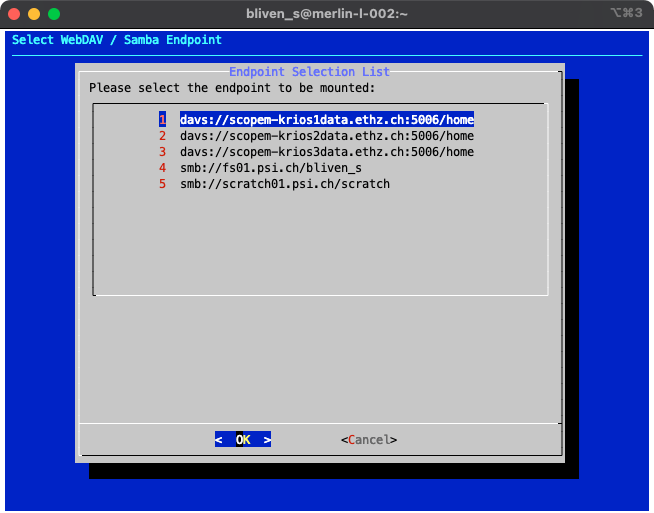
From this list any of the standard supported endpoints can be mounted.
Other endpoints
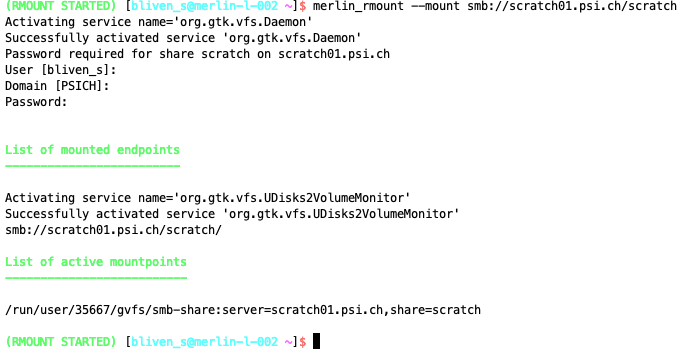
Other endpoints can be mounted using the merlin_rmount --mount <endpoint> command.
Accessing Files
After mounting a volume the script will print the mountpoint. It should be of the form
where $UID gives your unix user id (a 5-digit number, also viewable with id -u) and
<endpoint> is some string generated from the mount options.
For convenience, it may be useful to add a symbolic link for this gvfs directory. For instance, this would allow all volumes to be accessed in ~/mnt/:
Files are accessible as long as the merlin_rmount shell remains open.
Disconnecting
To disconnect, close the session with one of the following:
- The exit command
- CTRL-D
- Closing the terminal
Disconnecting will unmount all volumes.
Alternatives
Thunar
Users that prefer a GUI file browser may prefer the thunar command, which opens the Gnome File Browser. This is also available in NoMachine sessions in the bottom bar (1). Thunar supports the same remote filesystems as merlin_rmount; just type the URL in the address bar (2).
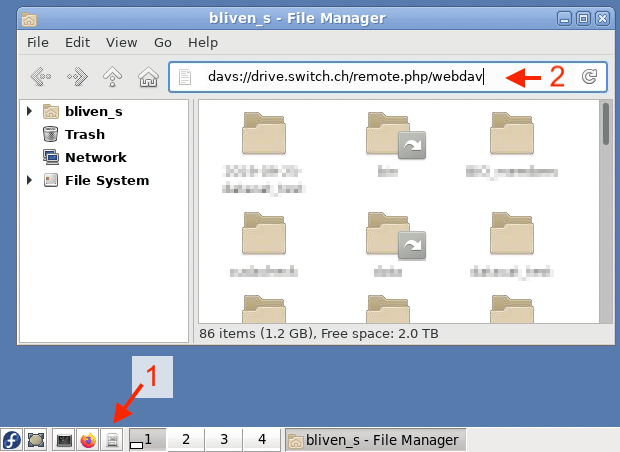
When using thunar within a NoMachine session, file transfers continue after closing NoMachine (as long as the NoMachine session stays active).
Files can also be accessed at the command line as needed (see 'Accessing Files' above).
Resources
- BIO docs on using these tools for transfering EM data
- Redhad docs on GVFS
- gio reference